

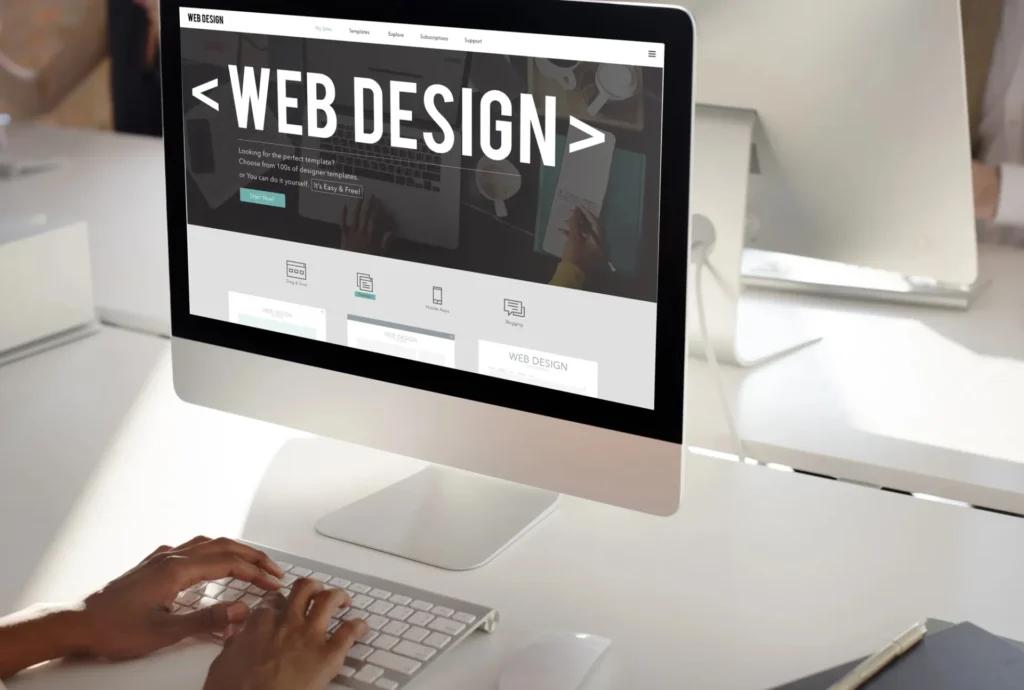
Launching a website for your business is a bold step. It is the digital front door to your brand. People will form opinions based on how your site looks. One glance can build trust. One bad layout can make visitors leave.
That is where your WordPress web design comes in. It sets the tone, defines the layout, and speaks to your audience without saying a word.
However, choosing the right theme is not easy. The WordPress universe has thousands of options. Some are free, and others come with a price tag. But not all themes are created equal. So, you must know what to look for.
Here’s the plan.
1. Define Your Business Goals
Before browsing themes, stop and ask yourself a vital question. What do I want my web design to achieve?
Different businesses need different features. A bakery wants to show cakes. A law firm needs credibility. A yoga studio might want online booking. A blogger will need crisp typography. If you run an eCommerce shop, you will need WooCommerce support. If you offer services, you may want a contact form front and centre. If you share stories, a clean blog layout matters.
Understanding your goal helps narrow your choices.
2. Keep It Simple and Clean
Fancy does not mean effective. A cluttered theme can overwhelm your visitors. They will not know where to look. Too many animations distract. Bright colours can scream instead of whisper.
So, choose a layout that breathes. Let your content speak. A clean theme improves readability. It reduces bounce rates, keeps visitors engaged, and avoids flashy gimmicks. Pick clarity over chaos.
3. Make Sure It’s Responsive
Your website must look good on every device. Most users browse on phones and tablets. A responsive theme adjusts to every screen. It resizes images. It rearranges menus. It keeps your site user-friendly on all gadgets.
Test the demo on your phone and watch how it behaves. If the layout breaks, walk away. Responsiveness is non-negotiable.
4. Prioritise Speed
Slow sites kill conversions. No one likes waiting. Google hates it too. A slow-loading WordPress web design will hurt your SEO. It will cost you visitors and reduce revenue. So, here’s what you should do:
- Choose a theme with lightweight code.
- Avoid bloated designs.
- Skip themes stuffed with animations.
- Test demo sites using tools like GTmetrix or PageSpeed Insights.
- Aim for a load time under three seconds.
5. Check Browser Compatibility
Different users use different browsers. Some love Chrome, and others prefer Safari or Firefox. Your WordPress web design must work on all of them. A site that crashes on one browser is a deal-breaker.
Most premium themes list supported browsers. Check that list. Open the demo in multiple browsers. Look for layout issues, font errors, and misaligned sections. Consistency is key.
6. Ensure Plugin Support
Plugins add features. They make WordPress powerful. You may need an SEO plugin or a security plugin, or a gallery plugin. Your theme must work with the tools you need.
Check the theme description. See if it supports popular plugins. Look for compatibility with Yoast SEO, WooCommerce, Contact Form 7, Elementor, and others. If you find plugin conflicts, skip the theme.
7. Don’t Ignore SEO Friendliness
A pretty design means nothing if no one finds it. Your theme must be search-engine-friendly. That means clean code, fast performance, and mobile compatibility. So, look for themes with built-in SEO support. Scan reviews for SEO performance. Use Google’s testing tools.
A WordPress web design that scores poorly on SEO will hold you back. Choose wisely.
8. Focus on Customisation Options
Your brand is unique. Your website should reflect that. A good theme offers flexibility. You should be able to change colours, adjust fonts, and move elements without stress. Some themes offer a drag-and-drop builder, while others use the WordPress Customizer. Some also offer theme panels.
Pick one that gives you freedom. Avoid rigid themes. They will box you in. Learning how to use these customisation tools takes practice. Many new users struggle to find settings in the WordPress Customizer. You can watch helpful videos here to see how these changes look in real time. These guides show you how to adjust your layout and colours step by step. So, a visual guide makes it easier to get the look you want. It saves you from the frustration of trial and error.
9. Look at Ratings and Reviews
Feedback from other users is gold.
- Read the reviews.
- Look at the star ratings.
- Scan through the comments.
See what people love and find frustrating.
A five-star rating with hundreds of downloads is a good sign. Trust the community. Their experience can save you hours.
10. Check Support and Updates
Your WordPress web design needs care and regular updates. Outdated themes pose risks and often stop working with new WordPress versions.
So, choose a theme with an active developer. Check how often updates are released. Look at how fast support responds. A good theme should have a support forum or ticket system. If you’re paying for a theme, demand excellent support.
11. Explore Demo Content
Most themes offer demos. These demos show the theme in action. Explore them—page structure, menu function, headers, footers, blog posts, etc. Some themes let you import demo content to make the setup easier. It saves time. You can replace the demo with your content later. Just make sure the theme is as easy to use as it looks.
12. Avoid Niche Themes (Unless Necessary)
Some themes are built for a specific niche. A lawyer theme. A gym theme. A fashion store theme. These can work well if they match your needs. But they often lack flexibility.
If your business might grow or shift, avoid such rigid themes. Choose a multipurpose theme instead. These offer more layouts, plugins, and design freedom. You’ll be future-proofed.
Final Thoughts
Picking the perfect WordPress web design is an art. It is also a science. You must balance style with substance. You must align features with goals and stay alert. The wrong theme can sink your site, but the right one can lift your brand.
So, take your time. Research deeply. Test fearlessly. Choose boldly.
For any further help, contact an expert like Make My Website.
